Heads up - Internet Explorer is no longer supported
Your browser is outdated, meaning it's incompatible with our website and exposes your computer to security risks. For a better, safer experience, please use a different browser or upgrade here.
At TomTom, we’re all about helping you get around. That’s why we use cookies to improve our sites, to improve your browsing experience, to offer social media functionalities, to streamline and personalize our marketing content and to show you personalized advertisements based on your interests (including on third party websites). You can change your preferences by clicking ‘Preferences’. More info at tomtom.com/cookies.
Accept
Decline
TomTom Retail Portal
Updating your device using MyDrive Connect
To update your device using the MyDrive Connect application, follow the below steps:
Use a TomTom USB cable to connect your TomTom device to your computer. Note: MyDrive Connect starts automatically when the device is connected.
If asked, log in with your TomTom account and wait for your device to turn on. Once connected, MyDrive Connect looks for updates and syncronises any changes from your device.
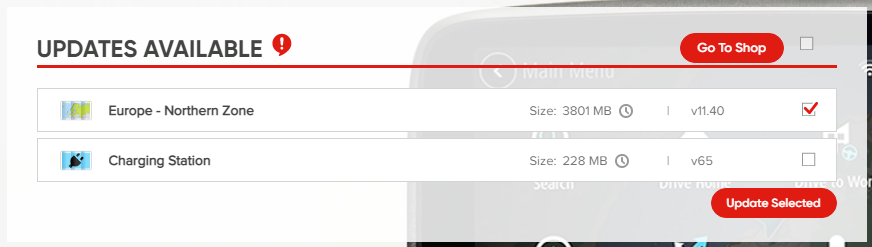
Click on View Updates to check for any available updates. Note: If there is a software update available, you must install it first. It's already selected at the top of the list; just click Update Selected to install it.
To download and install updates select them from the list, then click Update Selected. The updates first download to your computer, then are transferred and installed on your navigation device. Note: Do not disconnect your navigation device from the computer until both the device and MyDrive Connect indicate that the update is completed.
This video shows how to update or change the installed maps for your device, and how to install a brand new map. The steps shown in this video apply to all devices that update with MyDrive Connect. For more information on freeing up space on your device, see: Removing unused content.